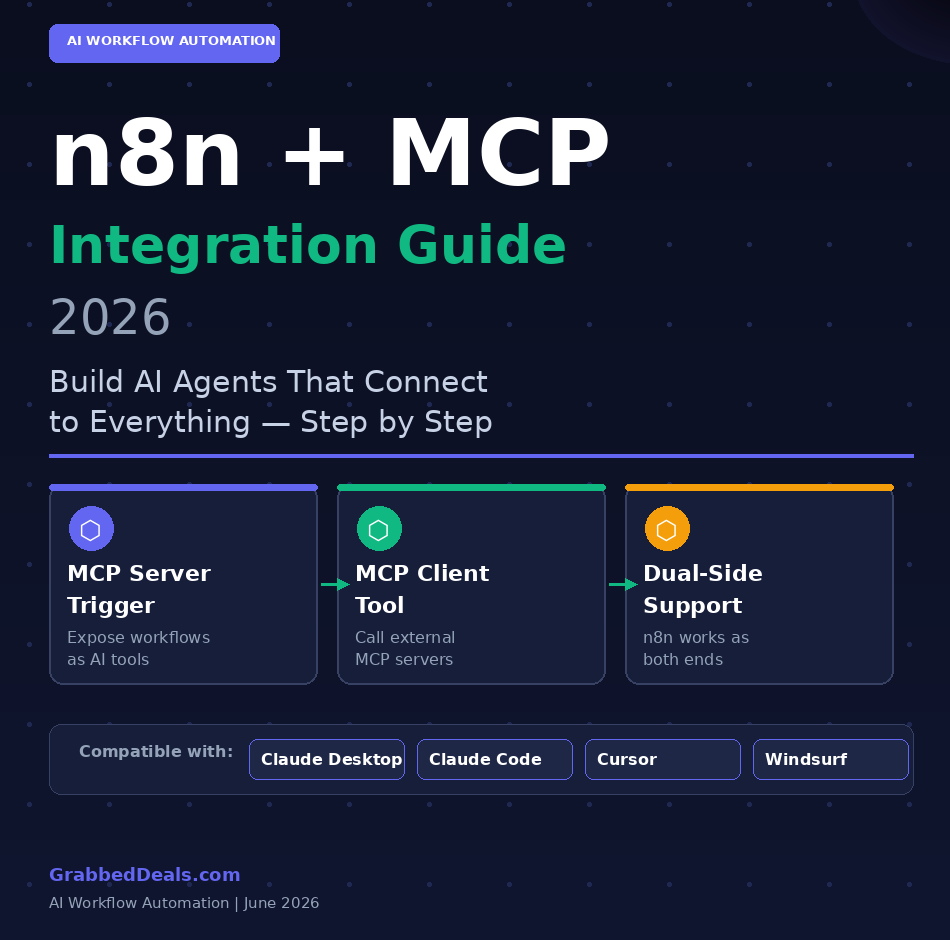
Your n8n workflows can now talk directly to Claude, GPT-4, and any MCP-compatible AI model through native Model Context Protocol support. This is the most practical AI agent upgrade to hit n8n in 2026, and it turns your existing automations into a callable backend that any LLM can use on demand. This guide walks you through setting it up, step by step.
Key Takeaways
- n8n now supports MCP on both sides: expose your workflows as tools for external AI agents, and call external MCP servers from inside n8n agents.
- Two native nodes handle everything: MCP Server Trigger (turns n8n into a server) and MCP Client Tool (connects n8n agents to external MCP tools).
- Setup takes under 30 minutes: create a workflow, add the trigger node, connect tools, secure with a Bearer token, and publish.
- Claude Desktop, Claude Code, Cursor, and Windsurf all connect using your n8n production URL out of the box.
- This separates the reasoning layer (your LLM) from the action layer (n8n workflows), making agents more reliable and easier to maintain.
Tags: n8n | mcp integration | ai agents | workflow automation | model context protocol | n8n tutorial 2026 | ai workflow
What is the n8n MCP integration and why does it matter?
MCP, or Model Context Protocol, is the standard that lets AI models safely call external tools as part of their reasoning process. Think of it as a shared language that AI assistants and automation platforms use to hand tasks back and forth.
Before n8n added native MCP support, connecting an LLM to your automations required custom API wrappers and a lot of maintenance. Now, n8n ships two dedicated nodes that handle all of that for you. You expose any workflow as a callable tool that Claude or GPT-4 can invoke during a conversation, without embedding business logic inside the prompt. The LLM decides what to do. n8n does the work. According to n8n’s official AI agents page, the platform now supports multi-agent setups, RAG systems, and direct MCP server connections alongside its existing 500-plus integrations.
Step 1: Set up your n8n instance
You need a running n8n instance first. Self-hosted is free and the fastest path for testing. Download n8n from n8n.io and follow the quickstart for your OS. If you already have n8n running, check your version in settings. MCP support requires n8n version 1.30 or above. Update before continuing if needed.
Step 2: Add the MCP Server Trigger node
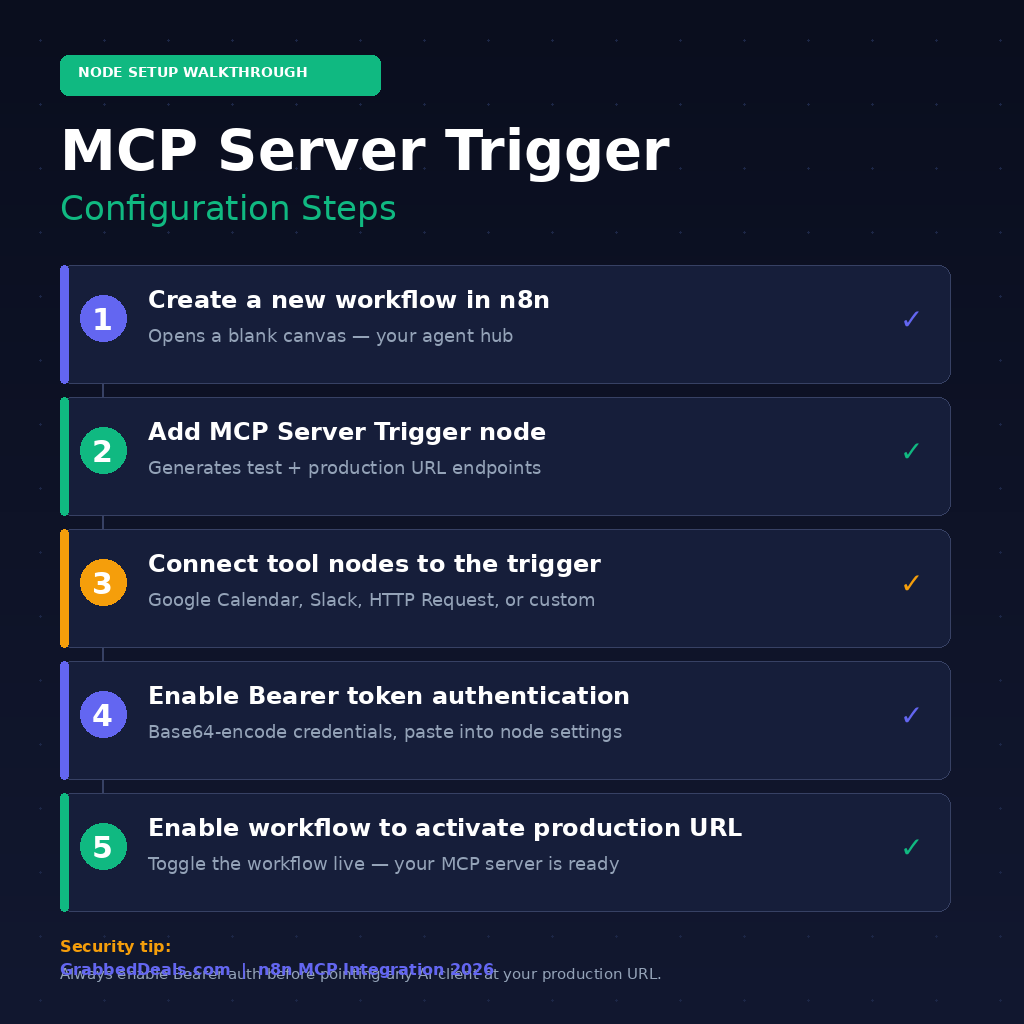
Create a new workflow. Click to add a node and search for MCP Server Trigger. Select it. According to n8n’s official documentation, this node generates a unique URL (test and production) that any MCP-compatible AI client can interact with.
Inside the node settings, n8n gives you an auto-generated path such as /mcp/abc123. Copy the production URL and save it. Unlike a standard trigger node, the MCP Server Trigger only connects to and executes tool nodes. It lists available tools for the client and calls them individually on demand.
Step 3: Connect your tools and secure the endpoint
Connect any tool node directly to the MCP Server Trigger to expose it. n8n supports over 500 integrations, including Google Calendar, Gmail, Slack, Airtable, and custom HTTP Request nodes for any unlisted API. You can also attach a Custom n8n Workflow Tool node to expose an entire existing workflow as a single callable action.
Write clear, specific tool names and descriptions inside each node. AI agents use those descriptions to decide which tool to call. A vague name like “Get data” will confuse your agent. A name like “Fetch open support tickets from Freshdesk” gives the LLM exactly what it needs.
Once your tools are connected, enable Bearer token authentication. Open the MCP Server Trigger node settings, switch authentication from None to Bearer, generate a Base64-encoded credential pair, and paste the token in. According to Leanware’s integration guide, using n8n’s built-in credential system keeps tokens secure and reusable across nodes. Enable the workflow by toggling it live in the top-right corner. Your MCP server is now active on the production URL.
Step 4: Connect Claude Desktop to your n8n MCP server
Open your Claude Desktop config file and add this entry under mcpServers:
{
  "mcpServers": {
    "n8n": {
      "command": "npx",
      "args": ["mcp-remote", "YOUR_N8N_PRODUCTION_URL"]
    }
  }
}
Replace the URL with your production endpoint from Step 2, save, and restart Claude Desktop. Your n8n tools will appear in Claude’s tool list immediately. The same approach works for Claude Code, Cursor, and Windsurf.
Step 5: Use the MCP Client Tool for bidirectional agents
The integration works both ways. Inside an n8n AI Agent workflow, add an MCP Client Tool sub-node to your agent. Enter the SSE endpoint of any external MCP server, set authentication, and choose which tools to expose: all of them or a selected subset.
This is what opens up real multi-agent architectures. As Infralovers noted in their n8n MCP analysis, n8n can consume MCP servers and expose its own workflows as MCP tools simultaneously, turning a workflow engine into a full agentic platform.
Watch: n8n MCP integration in action
Final verdict
The n8n MCP integration is the most practical way to give AI agents real-world tools without building custom bridges from scratch. If you already use n8n, you are five steps away from a production-ready AI agent backend that Claude, GPT-4, or any MCP-compatible model can call directly. Start with one or two existing workflows, connect them to Claude Desktop, and test before you expand. The architecture scales cleanly because the LLM and the automation stay separate.
Frequently asked questions
What is MCP and why is it important for n8n in 2026?
MCP stands for Model Context Protocol. It is the standard that allows AI models like Claude and GPT-4 to call external tools in a structured, secure way. For n8n users, native MCP support means you can expose automations as AI-callable tools without writing custom API wrappers. It standardizes how your LLM communicates with your automation stack.
Does the n8n MCP integration work with Claude Desktop?
Yes. Claude Desktop supports MCP natively and connects to any MCP server using the mcp-remote package. Point it at your n8n production URL, add your Bearer token, restart Claude Desktop, and your n8n tools appear in Claude’s available tool list.
Is the n8n MCP integration free to use?
Both MCP nodes (MCP Server Trigger and MCP Client Tool) are included in n8n at no extra cost, on self-hosted and Cloud plans alike. You pay separately for any LLM API calls that your agent makes during workflow execution.
How many tools can I expose through a single n8n MCP server?
There is no hard technical limit. Practically, keep your tool sets focused and clearly described so your AI agent makes accurate tool selection decisions. Exposing many vaguely named tools degrades agent performance faster than any platform limit.
What is the difference between the MCP Server Trigger and the MCP Client Tool?
The MCP Server Trigger turns n8n into an MCP server, exposing your workflows to external AI clients like Claude. The MCP Client Tool does the reverse: it lets an n8n AI agent call tools from an external MCP server during workflow execution. Both can be active simultaneously for full bidirectional MCP communication.
Explore our page – AI Tools & Productivity